Browser extension
penciled for the browser is a free, open-source (MIT) highlighter extension for Chrome, Edge and Firefox that saves your highlights and notes on any web page and shows them again when you return. It’s the browser extension of penciled.org: no account, no cloud, and nothing leaves your browser.
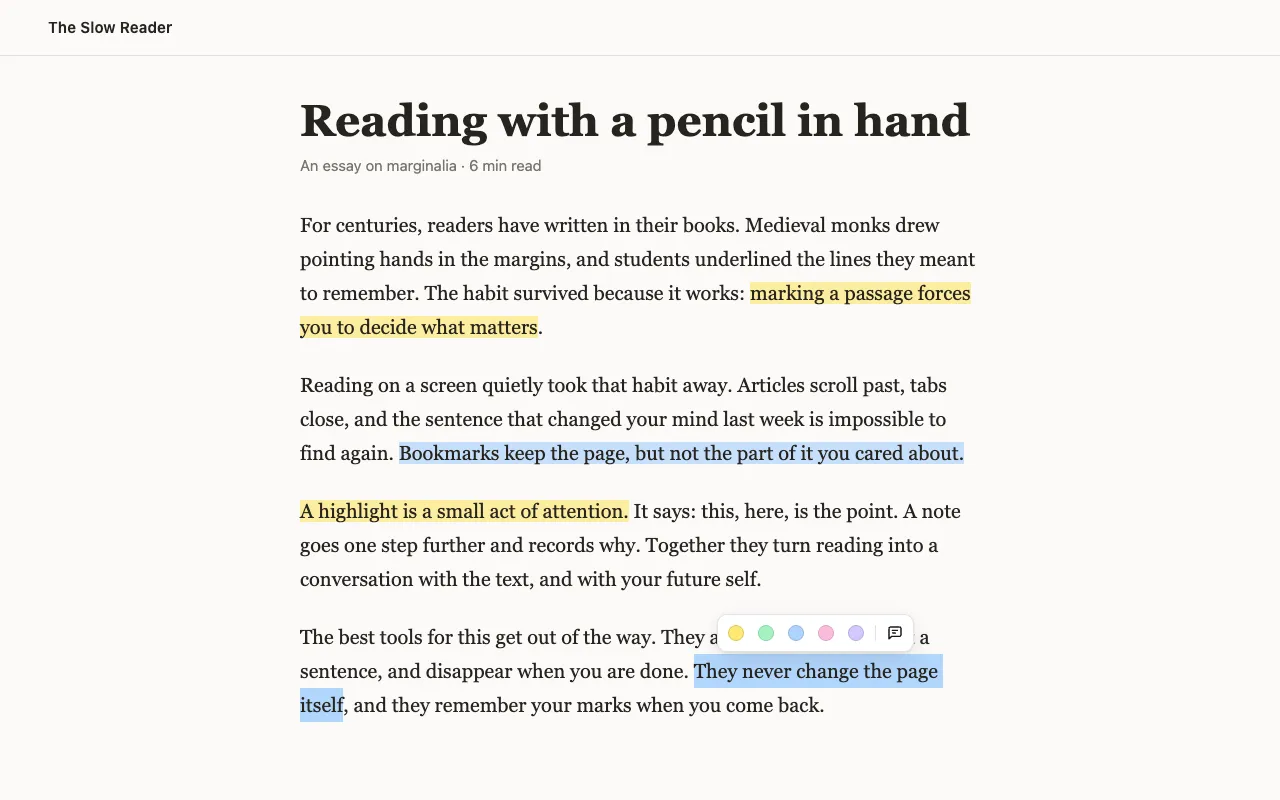
Get the penciled highlighter extension for your browser:
How do I highlight text on a website and keep it?
Section titled “How do I highlight text on a website and keep it?”Install the extension, select text on any page and pick a color in the toolbar that appears. The highlight is saved in your browser right away. Click a highlight to change its color, add a note or remove it.
- The sidebar: click penciled’s toolbar button to keep your highlights open beside the page as you read. This page follows the tab you’re on, and All pages searches everything. Click a highlight to scroll to it, or the eye to hide or show highlights on the tab. Alt+Shift+N opens or closes the sidebar too.
- The menu: if you’d rather have a small menu of this page’s highlights, make penciled’s toolbar button open it in the settings. The menu also turns penciled off for the whole site. In browsers without a sidebar, the button always opens the menu.
- Tags: in the sidebar, click a highlight’s tag button to add tags, such as
#to-reador#research. Click a tag to show only highlights with it, or search for#tagthere or on the notes page. - All your notes: the notes page lists every highlight from every site, with search. Open it from All notes in the sidebar or the menu.
- Keyboard: Alt+A moves into the toolbar, Alt+] and Alt+[ move between highlights, Alt+Shift+H hides or shows highlights on a tab, and Alt+Shift+N opens or closes the sidebar. On a Mac, Alt is ⌥.
- Settings: choose the toolbar’s theme, what penciled’s toolbar button opens, turn off opening the toolbar on every selection, edit or add colors, and see the sites penciled is off on.
Do my highlights come back when I reload or revisit the page?
Section titled “Do my highlights come back when I reload or revisit the page?”Yes, as long as you open the same address. Highlights are saved per page address (URL), so they come back when you reload, close the tab or return days later. The #fragment, a leading www., a trailing slash and common tracking parameters such as utm_source are ignored, but other differences in the address count as a different page. If the same article is reachable at two different addresses, highlights made on one don’t show on the other.
When a page changes so much that penciled can’t be sure where a highlight belongs, it doesn’t guess: the highlight is listed as Couldn’t find this on the page, so you can still read or delete it. See Anchoring for how this works.
Is there a highlighter extension that doesn’t need an account or cloud sync?
Section titled “Is there a highlighter extension that doesn’t need an account or cloud sync?”Yes: penciled for the browser has no account and no cloud. Highlights are stored in your browser’s extension storage, on your computer only. The flip side is that they don’t sync between computers. Only your settings sync, through your browser account. To move highlights to another browser, use Export a backup on the notes page, then Import a backup in the other one.
Highlights are stored only in the browser you made them in, and uninstalling penciled deletes them, so export a backup now and then.
Does penciled send my highlights anywhere?
Section titled “Does penciled send my highlights anywhere?”No. The extension makes no network requests: it has no servers, analytics, tracking, ads or accounts. Your highlights and notes stay in your browser. See the privacy statement, and the source code if you’d like to check.
Which highlighter extension works in Chrome, Edge and Firefox?
Section titled “Which highlighter extension works in Chrome, Edge and Firefox?”penciled for the browser works in Chrome and Edge 123 or later, and in Firefox 140 or later, from each browser’s own store.
Does it work in Brave, Zen and other Firefox- or Chromium-based browsers?
Section titled “Does it work in Brave, Zen and other Firefox- or Chromium-based browsers?”Other Chromium browsers, like Brave, can install it from the Chrome Web Store, and Firefox-based browsers, like Zen, from Firefox Add-ons. It needs the same engine versions: Chromium 123+ or Firefox 140+. Browsers without a sidebar get the menu instead.
Can I export my highlights to Markdown for Obsidian or Logseq?
Section titled “Can I export my highlights to Markdown for Obsidian or Logseq?”Yes, as a file: Export as Markdown on the notes page downloads a .md file with a heading per site and page, and each highlight quoted with its note. You can open or copy that file into Obsidian, Logseq or any notes app. There’s no integration or sync with them: the export is a one-off copy, so later highlights need a new export.
Who is it for?
Section titled “Who is it for?”People who read on the web and want to keep what matters: documentation, articles, research, long reads. Highlight the parts you’ll need again, add a note, and find them from the sidebar or the notes page.
It isn’t for everything yet:
- PDFs aren’t supported, and neither is text inside frames, such as embedded posts.
- Text fields and other editable areas are left alone.
- Highlights don’t sync between computers.
- It isn’t a read-later app: it doesn’t save copies of pages, only your highlights and notes on them.
If you need one of these, see alternatives to the penciled.org highlighter extension for tools that do.
Found a bug or missing something? Open an issue.